Email notifications
Note
SMTP is optional. FlowO works fully without outbound email; this page is for administrators who want lifecycle alerts.
FlowO can send email when runs start, succeed, or fail—after an administrator saves SMTP settings in the product.
Where SMTP is configured
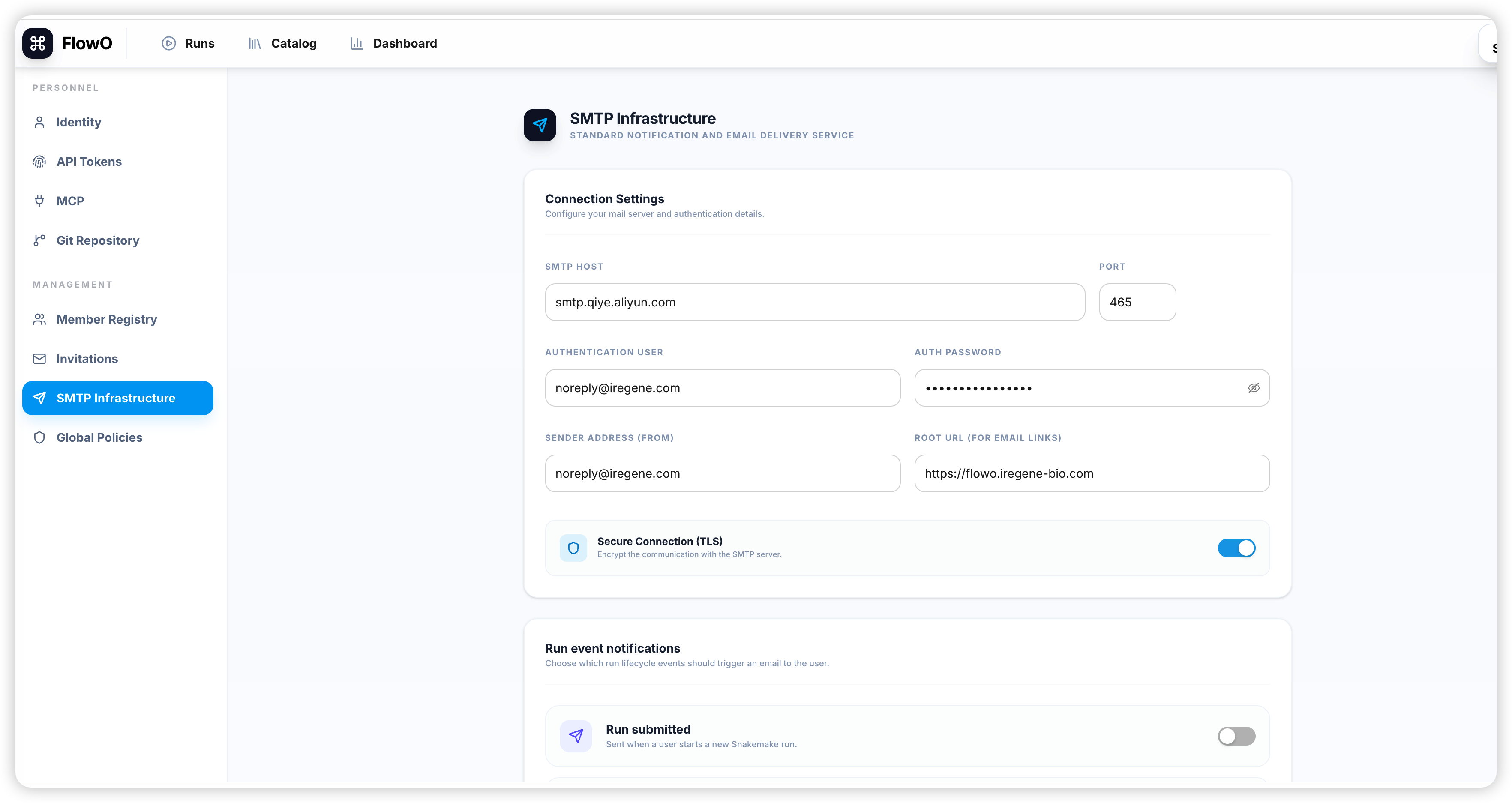
Configure outbound mail in the web UI:
- Sign in as a user who can open Settings → SMTP Infrastructure (typically a superuser).
- Enter host, port, credentials, and “From” identity, then save. Values are stored in system settings (database) and read by the notification service at send time.
There is no separate requirement to duplicate the same fields in a root .env for normal operation—use the Settings page as the source of truth.
Typical fields (UI / API)
| Field | Role |
|---|---|
| SMTP host | Mail relay hostname (e.g. smtp.gmail.com). |
| SMTP port | Often 587 (STARTTLS) or 465 (implicit TLS). |
| SMTP user / password | Relay authentication when required. |
| From address / display name | Visible sender on notifications. |
User preferences
After SMTP works at system level, each user may opt in under user settings (notification toggles) if your deployment exposes them.
Common notification types
- Workflow started
- Workflow succeeded
- Workflow failed (often includes a deep link such as
/runs/{id})
Sample notification
Failure emails usually include run name and id, triggering user, failed rule, and a link back to the run so reviewers can open logs immediately.
Gmail and app passwords
If you use a personal Gmail account as the relay, you will likely need a Google App Password instead of your normal login password.